Lists and Notes, Arranged Your Way.
Everything in One Place, Organized How You Want
Notes, lists, and your schedule are only half the story. The other half is how Zindash lets you organize and arrange all of it. Tag anything to make it show up everywhere it’s relevant, switch between a simple list view and a freeform layout you can drag, resize, and stack like tiles on a desk, and tuck away what you’re not using without losing it. It’s the same handful of ideas underneath every post type, and it’s what makes the app feel like yours instead of a fixed template.
Post Types
At its core, Zindash gives you three ways to capture what matters: a place to write, a place to track, and a place to plan. Each one is more capable than it looks at first glance, but none of them ask you to learn something new just to get started. Together, they cover most of what a day actually consists of.

Notes
Write it down, formatted just enough to stay readable, and find it again fast.
Note Features

Lists
Break down what needs doing, nest the details under it, and organize it your way.
List Features

Schedule
See your time, track what you did with it, and turn that into something billable.
Schedule Features
Windows Mode
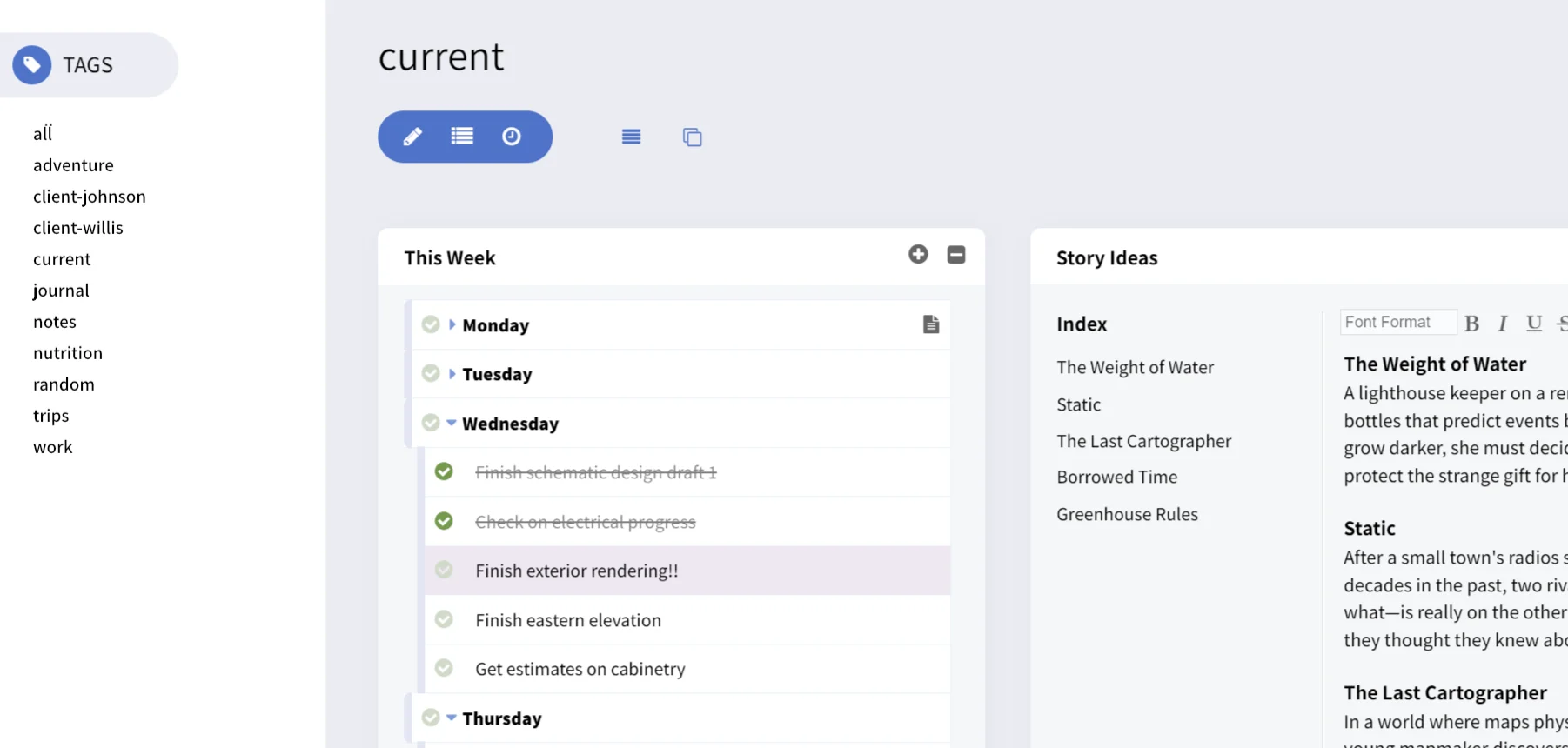
In Windows view, posts become tiles you can arrange like items on a desk: moved, layered, and sized however makes sense for what you’re working on.
Resizable, Movable Post Tiles
Drag any tile by its handle to reposition it, or drag its edge to resize it — everything snaps to a clean grid, and your layout is remembered exactly as you left it the next time you’re on that tag. Set up your workspace once, the way you actually think, instead of re-finding everything every time you open the app.
Minimize Post Tiles
Collapse any tile down to just its title with one click, without closing or losing anything inside it. Keep reference material and lower-priority posts a click away instead of cluttering the view — or gone entirely.
Tags
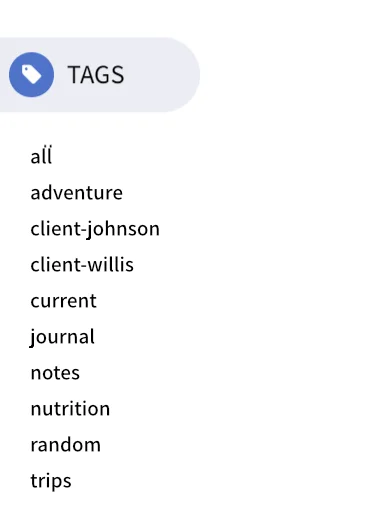
Every post, whether a note, list, schedule event, or anything a plugin adds, can carry more than one tag, and tagging isn’t filing something away in one place: it shows up in every tag view that matches. Organize the same piece of information by client, project, or context without ever having to duplicate it or decide on just one home for it.
Nested Tags
Use a caret to denote a parent/child tag. For instance, a tag like “client>williams”, will create an expandable/collapsible section in the tags listing pane named “client”, with a child tag under it named williams. Additional tags that follow this format will be automatically grouped under the common parent.