
Lists That Actually Keep Up With You
Lists Built for the Real Mess of Work
Most list apps stop at checkboxes. Zindash’s lists are built for the way real projects and to-dos actually work: messy, interconnected, and constantly shifting. Nest sub-tasks under the bigger picture, attach the context you need right where you need it, and move things around as priorities change, all without losing your place or your history. Here’s what that looks like in practice.
List Item Nesting
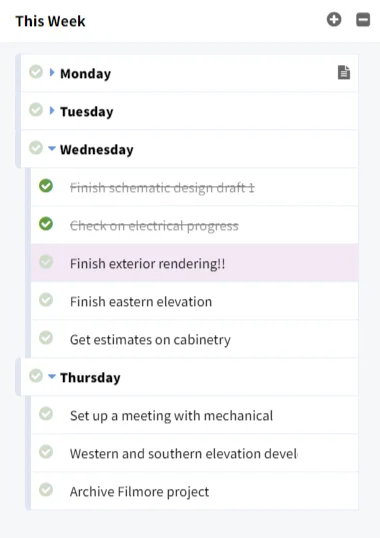
Indent any item to nest it under another, turning a flat list into a structured outline. Dragging a parent brings its whole group of sub-items along with it. This lets you break big tasks into smaller steps without losing the connection between them, so your list stays organized as it grows more complex.
Highlighted List Items
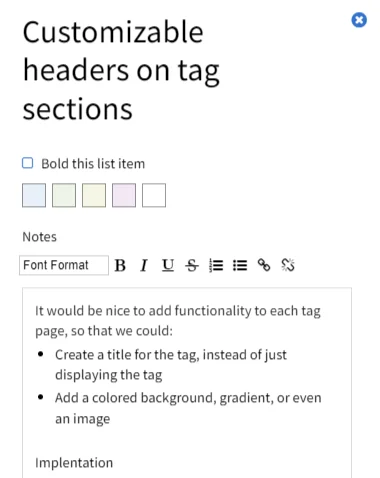
Mark any item with one of five colors, right from its detail view. It’s a fast, glanceable way to flag priorities, categories, or contexts across a busy list without having to read every line.
Bold Formatting on List Items
Toggle bold on any list item’s text with one click. It’s a simple way to make key tasks, headers, or section dividers stand out from the rest of the list.
List Item Notes
Every item can hold its own notes, separate from its title, accessible from a small icon that shows up whenever notes are present. This keeps supporting details, context, or links attached directly to the task they belong to, instead of cluttering the item text itself or getting lost in a separate note.
And More
Move From One List to Another
Drag an item straight from one list onto another and it relocates there completely, children included. Priorities shift constantly. With this functionality, Zindash lets you reorganize on the fly without retyping a single word.
Sync From One List to Another
Hold shift while dragging to leave a linked copy behind instead of moving the item. Edit the text, notes, formatting, color, or completion status on either copy, and both stay in sync automatically. It’s built for tasks that genuinely belong on two lists at once (say, a personal list and a shared project list) without the risk of them drifting out of sync with each other.
Time Estimation
You can auto-calculate how long a group of tasks will take. For child list items, enter “hr”, “hrs”, “min”, or “mins” with a number (like “2hrs”), and all child time estimates will be added, and placed on the parent list item, giving you a total amount of time that the group of tasks will take.
Same List, Different Locations
Tag a list with more than one tag, and it will show up in every tag view that matches. No duplicating or copy-pasting required. This lets you organize the same list by whatever context makes sense (work, personal, a specific project) and find it wherever you’re looking for it.
Easy Keyboarding
Lists are meant to be as easy to navigate as a text document. Use the up and down keys to jump between list items, and holding shift while doing so will move items up or down in the stack. Creating sub-tasks is easy, just hit the tab key to indent and create (or update) a child task.